For teams
Run client work, colleagues and client logins from one workspace.
Set up your team
One workspace for your firm.
- Go to Clients in the menu (founder accounts see Team) and click Create team. Enter your firm's name and country.
- Click People and invite colleagues by email. Choose Member, Admin or Owner. They join with one click, even if they don't have an account yet.
Everyone works on the same client models, with no copies flying around, and you control who can do what.
Add clients and build their models
Each client company gets its own space.
- Click Add client for each client company. Their country settings are used for their models.
- Open a client and create models with Build a model, Quick draft or Import a spreadsheet.
- Share a client's model with investors exactly as a founder would.
Keeping every model under its client makes it easy to see where each one stands, and to hand work over between colleagues.
Give clients their own login
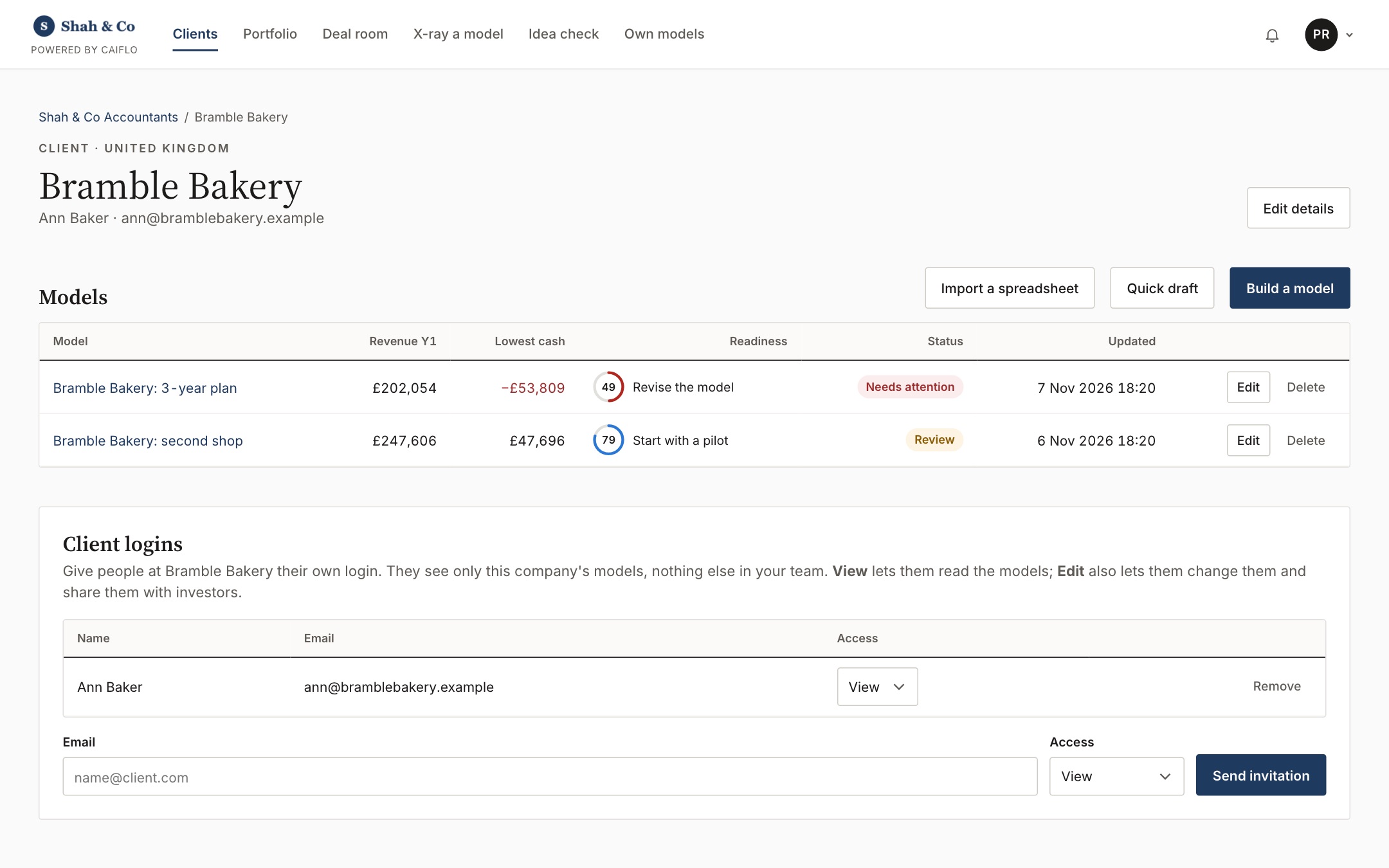
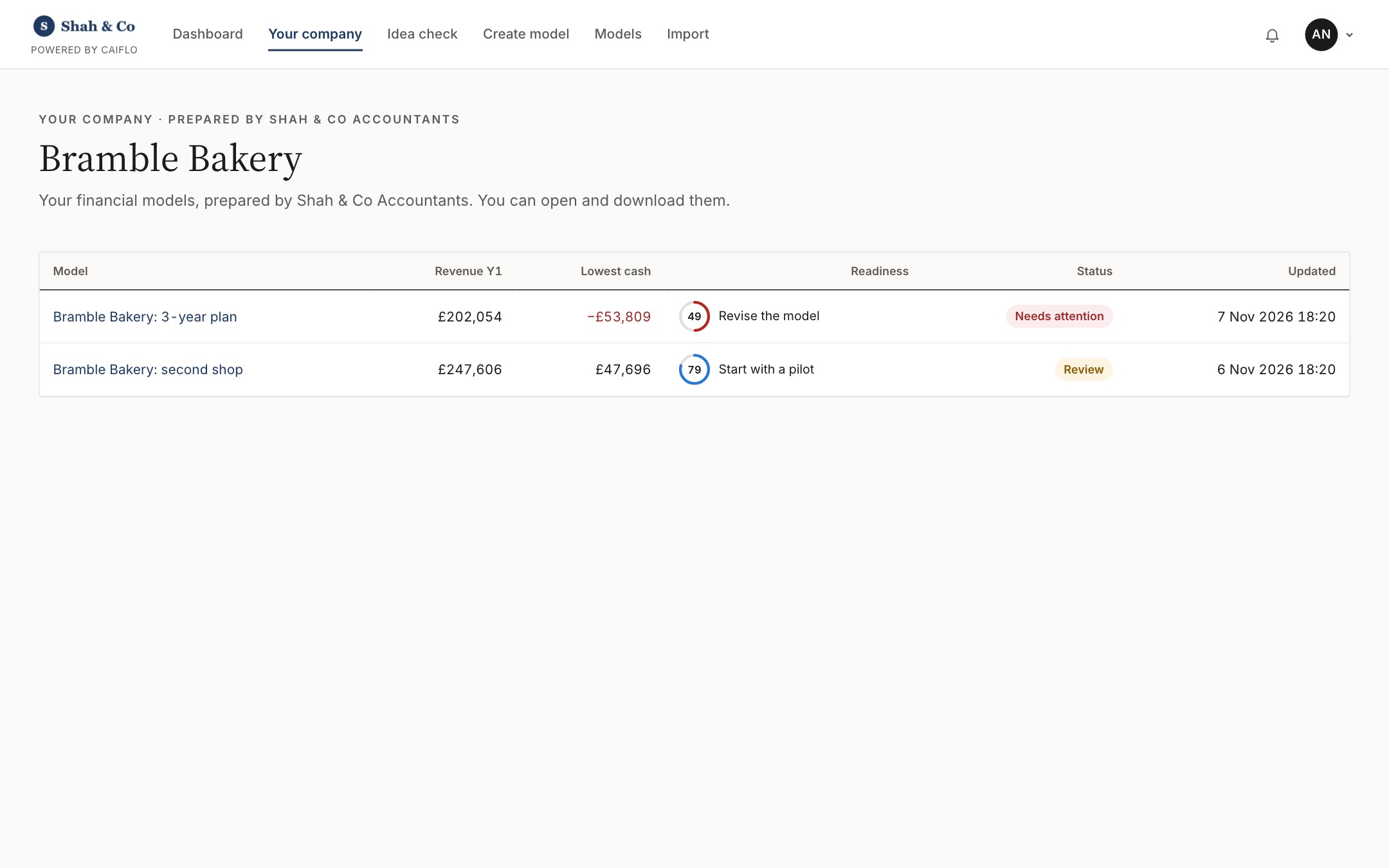
Let a client see, or work on, their own models, and nothing else.
- Open the client and go to Client logins.
- Enter the client's email, choose View or Edit, and click Send invitation.
- They click Accept and open the models in the email, choose a password, and land straight on their models.
Clients see progress without waiting for you to send an update, and they can never see another client's work.
Collect models with an intake link
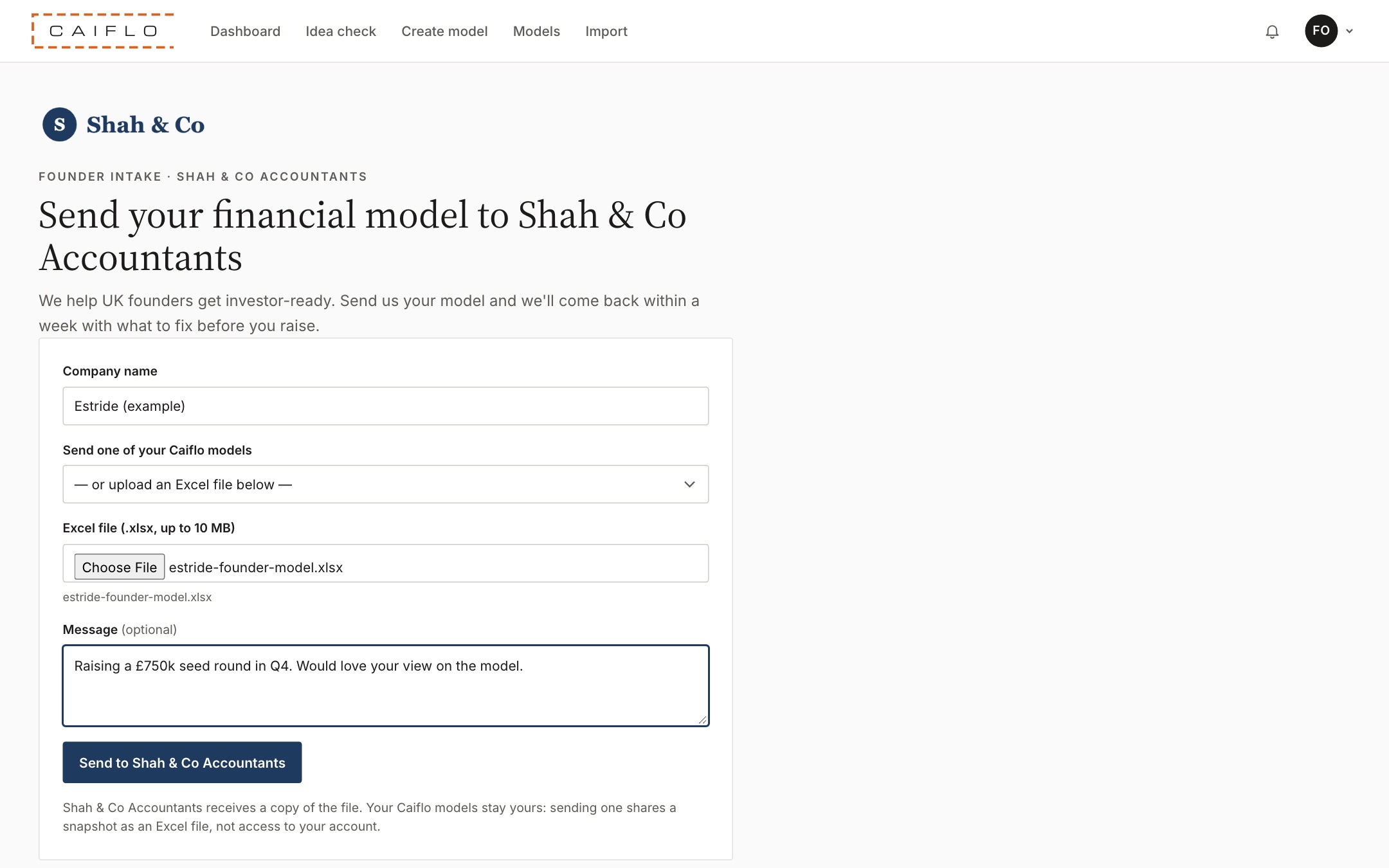
A public link founders can use to send you their model.
- Go to People and click Turn on the intake link under Founder intake link. Copy the address.
- Put it on your website or in emails. Founders submit their model through it, and it lands in your deal room.
It replaces scattered email attachments with one tidy queue. See Founder intake link.
Your branding and sign-in
Make Caiflo look like part of your firm.
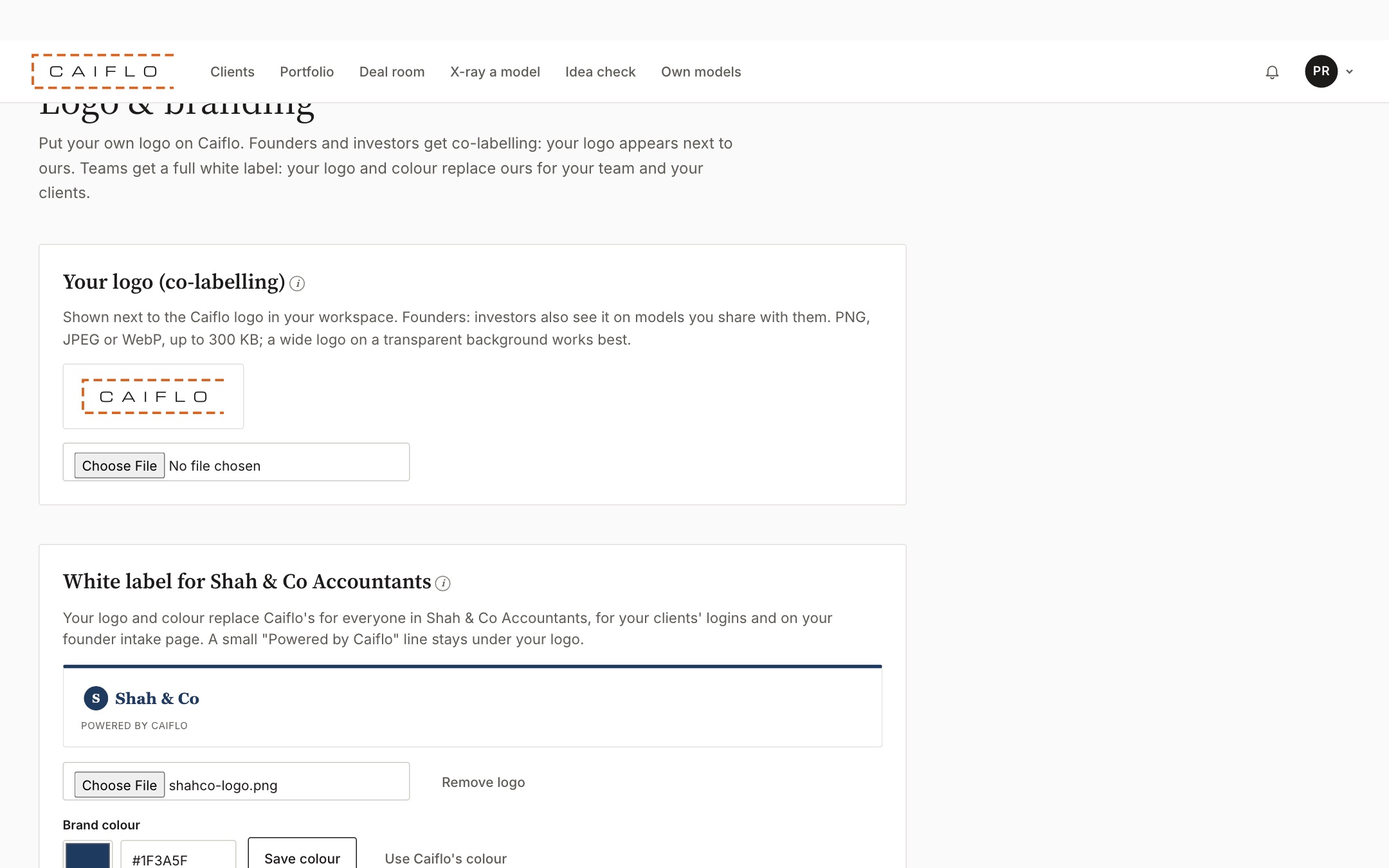
- Open the menu under your initials, choose Logo & branding and upload your logo (PNG, JPEG or WebP) and choose your colour. Clients and investors then see your brand on your models.
- If your firm uses Microsoft 365, click Link to my Microsoft organisation under People. Colleagues who sign in with Microsoft can join automatically, and you can require Microsoft sign-in for everyone.
Clients trust work that's clearly yours. Single sign-on means one less password, and people who leave your firm lose access when their Microsoft account is closed. See White label and Single sign-on.